Node Settings
Dieser Inhalt ist noch nicht in deiner Sprache verfügbar.
Node: Vision Stabilizer (FAnimNode_VisionStabilizer). It keeps a persistent camera point near the animated head and writes it to the POV virtual bone. Place it in the final pose chain, normally right before Output Pose.
Pin column: Shown = visible pin by default. Optional = hidden by default; expose it as a pin from the node’s Details panel to drive it at runtime. No = Details panel only. Settings marked (Mode) only appear when that mode is selected. Like every Skeletal Control node it also has Alpha (blend the whole effect in and out) and LOD Threshold.
How it works
Section titled “How it works”Each frame, relative to the character mesh (component space):
- Clamp center = the head position, blended with the optional anchor by Head Influence, plus Height Offset upward.
- Smoothing moves the stored camera point toward the center (Smoothing Mode). With None it stays where it was.
- Clamp: if the camera point is farther from the center than the clamp radius, it is pulled back to the edge of the clamp volume (sphere or ellipsoid).
- Output: the result is written to the POV bone. Rotation is the rotation captured on the first frame, optionally blended toward the head’s rotation.
With no smoothing, the clamp is a leash: the camera holds still while the head moves inside the radius and is dragged only past it. With Spring, the camera continuously settles toward the center and the radius becomes a safety limit. Because everything is relative to the mesh, moving through the world never makes the camera lag; only head motion relative to the body is stabilized.
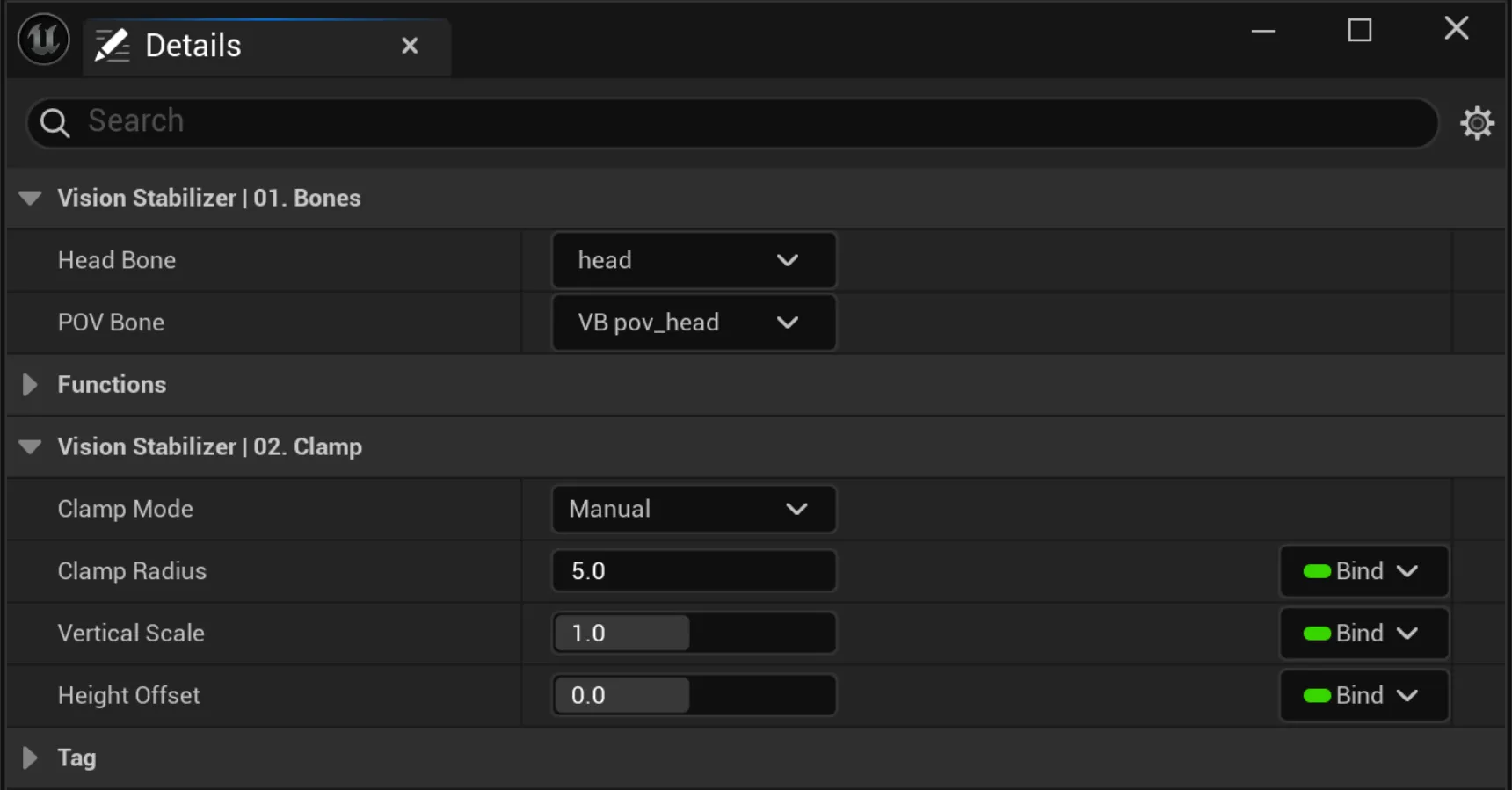
01. Bones
Section titled “01. Bones”| Setting | Default | Pin | What it does | Use case |
|---|---|---|---|---|
| Head Bone | head |
No | Animated head bone. Its position is the clamp center (blended with the anchor by Head Influence). | Change for custom skeletons. |
| POV Bone | VB pov_head |
No | Virtual bone that receives the stabilized result. Attach the camera here. Must differ from Head Bone. | Use another name if your virtual bone is named differently. |
02. Clamp
Section titled “02. Clamp”| Setting | Default | Pin | What it does | Use case |
|---|---|---|---|---|
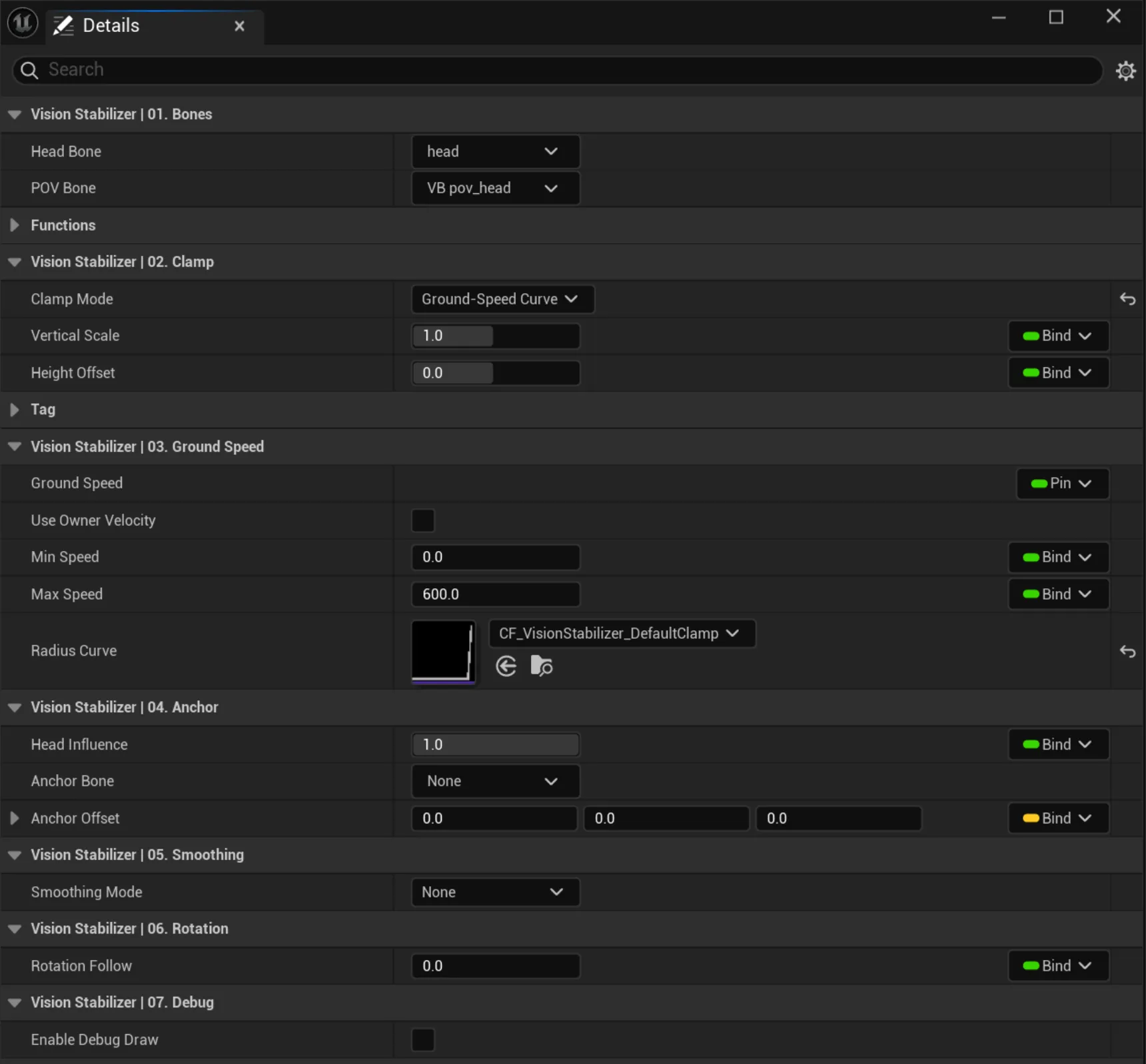
| Clamp Mode | Manual | No | How the clamp radius is chosen: Manual (fixed), Ground-Speed Curve (curve asset), Ground-Speed Range (two values). See 03. Ground Speed. | Manual for most setups; a speed mode when sprinting needs more room than standing. |
| Clamp Radius (Manual) | 5 cm | Shown | Maximum distance between the camera point and the clamp center. Also the fallback in Ground-Speed Curve mode when no curve is assigned. | Smaller = follows the head closer; larger = absorbs more motion. Walking: 3-10 cm. With Spring: 30-80 cm as a safety limit. |
| Vertical Scale | 1 | Optional | Height of the clamp volume relative to its radius. 1 = sphere, below 1 = flatter, 0 = height locked, above 1 = taller. | Most walking bob is vertical: 0.3-0.5 holds the horizon steady while keeping some sideways freedom. |
| Height Offset | 0 cm | Optional | Moves the clamp center up (+) or down (-) along the mesh’s vertical axis. Range -100 to 100. | Correct the camera height, or lower it while crouching. |
03. Ground Speed
Section titled “03. Ground Speed”Hidden in Manual mode. Both speed modes limit the speed to Min Speed - Max Speed before using it, so the radius never extrapolates past the range you designed. Negative speeds count as 0, swapped Min/Max values are handled, and negative radii count as 0.
| Setting | Default | Pin | What it does | Use case |
|---|---|---|---|---|
| Ground Speed | 0 cm/s | Shown | Horizontal speed in cm/s (a scalar, not a velocity vector). Hidden (setting and pin) when Use Owner Velocity is on. | Wire your own speed (for example from Character Movement). |
| Use Owner Velocity | Off | No | Reads horizontal speed from the owning actor every frame instead of the Ground Speed pin. Disconnects and hides the Ground Speed pin. | Zero-wiring setup. Turn off if speed should come from somewhere else (vehicle, mount, root motion). |
| Min Speed | 0 cm/s | Optional | Lowest speed used. Slower input counts as this value. | Usually 0. |
| Max Speed | 600 cm/s | Optional | Highest speed used. Faster input counts as this value. | Set to your character’s top speed. |
| Radius Curve (Curve) | None | No | Float curve: speed (cm/s) -> clamp radius (cm). The bundled CF_VisionStabilizer_DefaultClamp goes from 5 cm at 0 to 10 cm at 600. |
Non-linear response, for example tight until a jog, then opening up at sprint. |
| Radius at Min Speed (Range) | 5 cm | Optional | Radius at Min Speed and below. | Standing / walking radius. |
| Radius at Max Speed (Range) | 10 cm | Optional | Radius at Max Speed and above. Speeds in between blend linearly. | Sprinting radius. |
Ground-Speed Curve or Range? Range needs no asset and covers the common “tight standing, looser sprinting” case; its defaults match the bundled curve. Choose Curve when you want a shape other than a straight line. To make your own curve: Content Browser > right-click > Data > Curve, then choose CurveFloat.
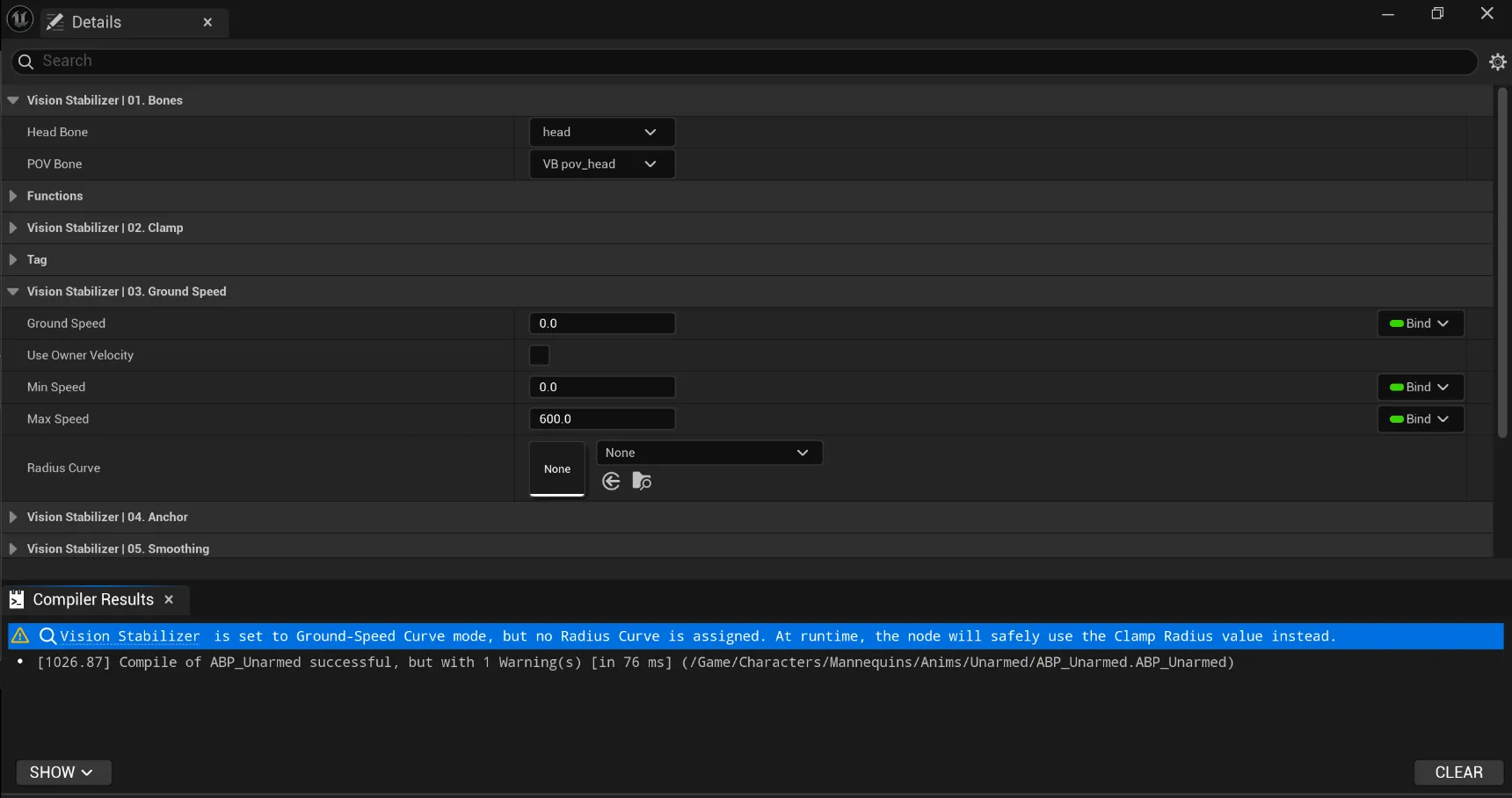
If Ground-Speed Curve mode has no curve, the compiler warns you and the node uses Clamp Radius.
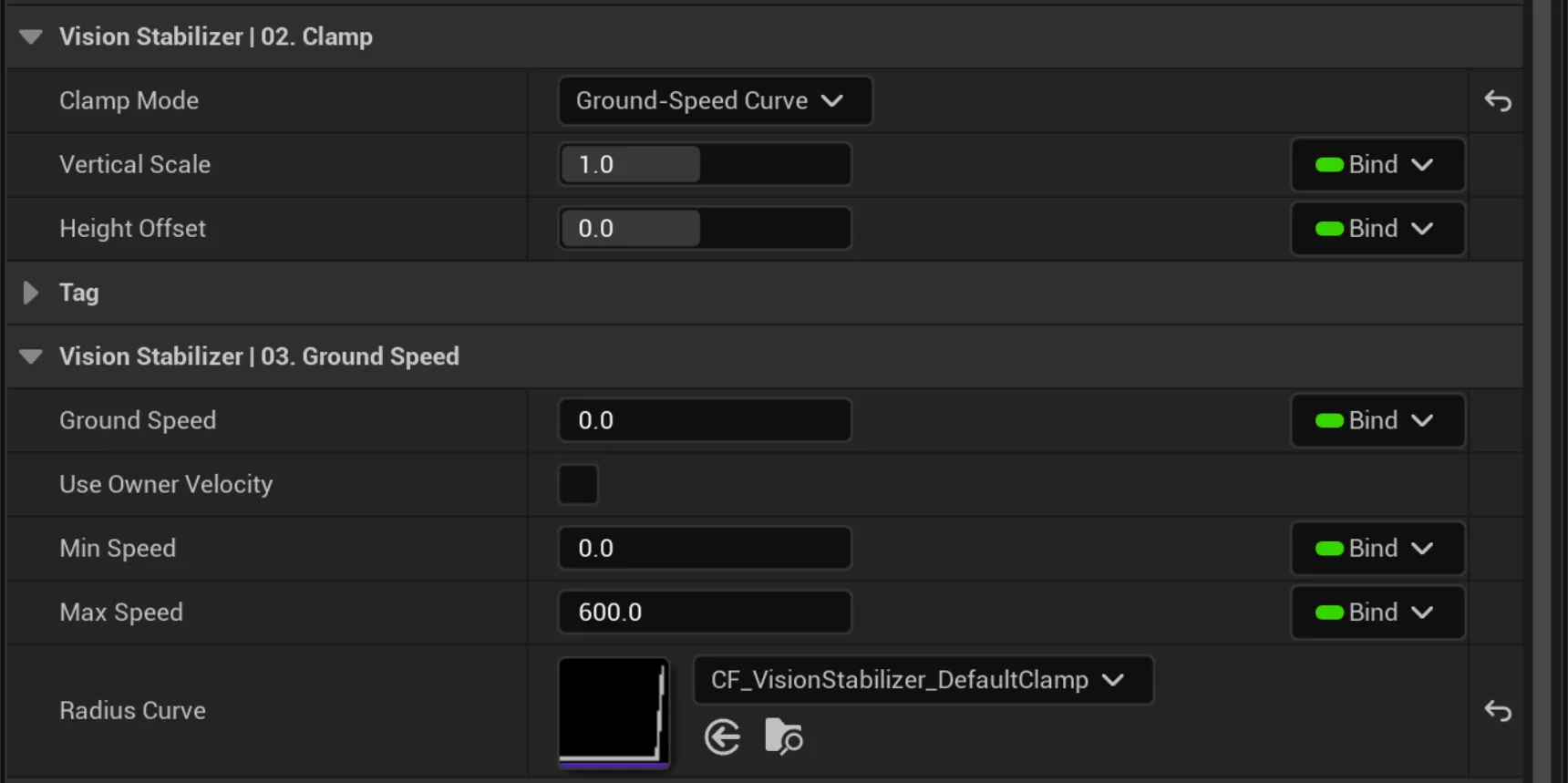
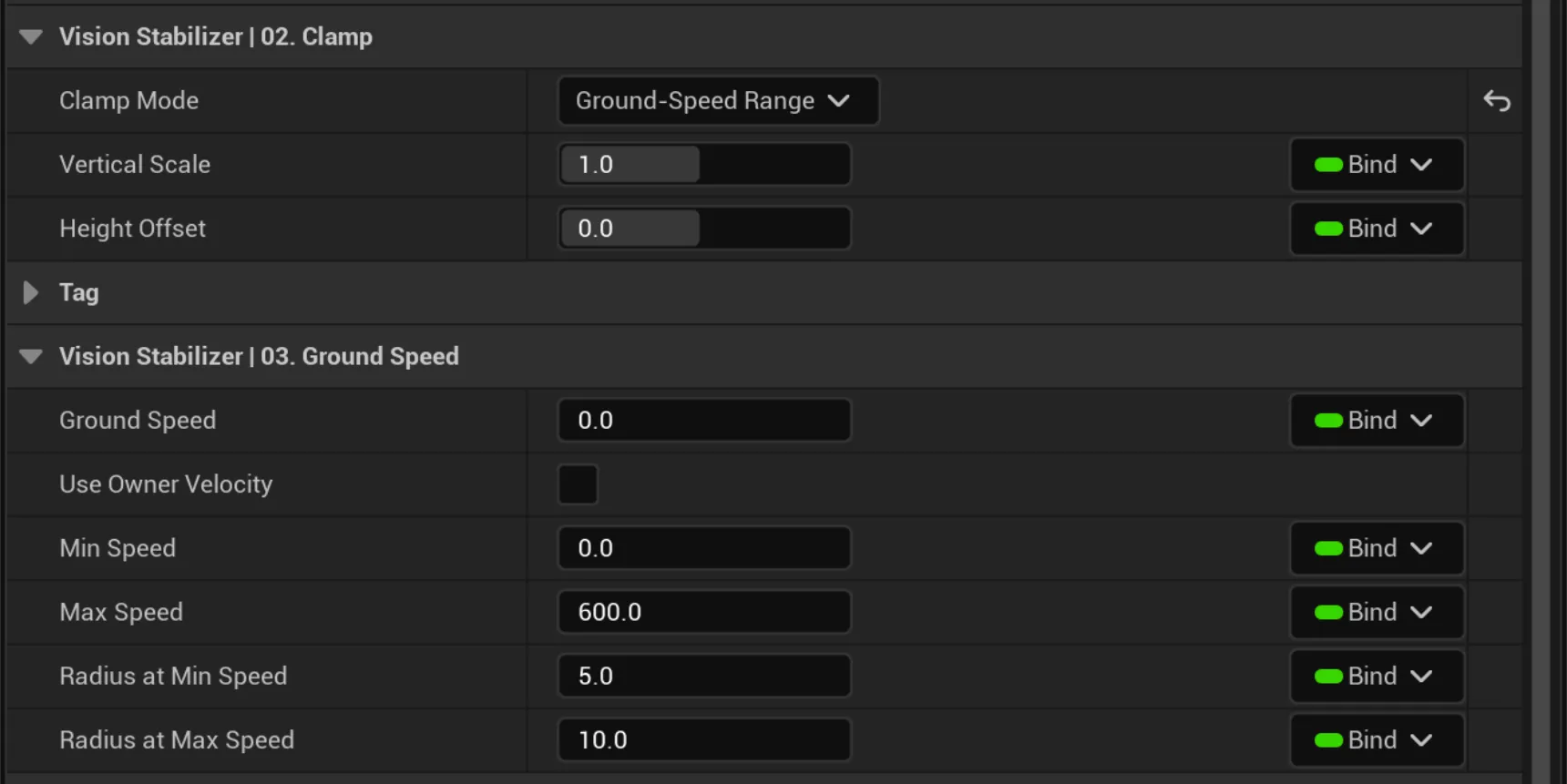
Example with the default range 0-600 (default curve, or Range with 5 / 10 cm):
| Actual speed | Speed used | Radius |
|---|---|---|
| 0 | 0 | 5 cm |
| 300 | 300 | 7.5 cm |
| 600 | 600 | 10 cm |
| 900 | 600 | 10 cm |
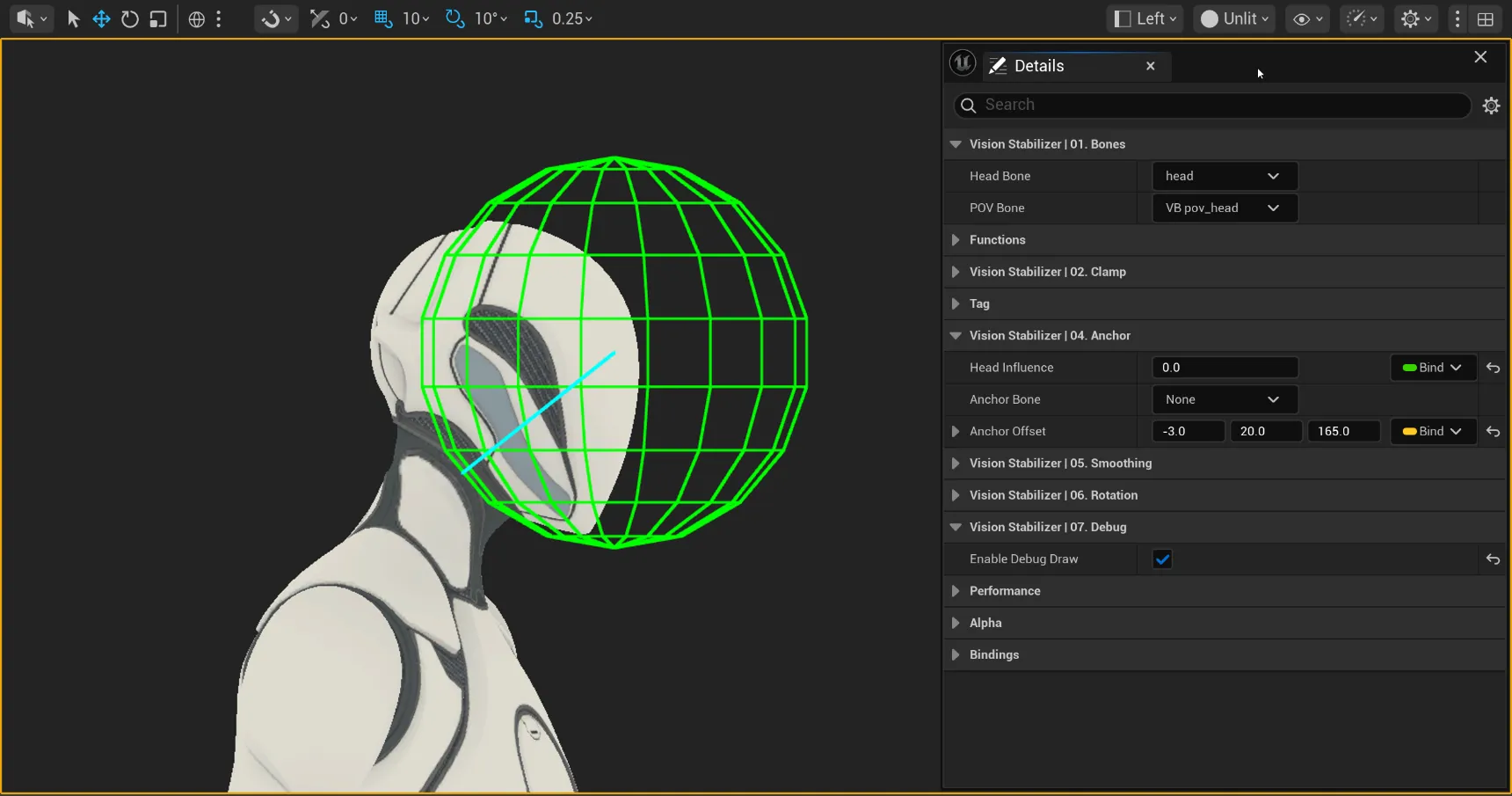
04. Anchor
Section titled “04. Anchor”| Setting | Default | Pin | What it does | Use case |
|---|---|---|---|---|
| Head Influence | 1 | Optional | 1 = the head alone sets the clamp center (classic). 0 = the anchor alone sets it; the camera ignores head motion. Values between blend. | Lower it for climbing, crawling, swimming, heavy attacks. Blend it per state with a pin. |
| Anchor Bone | None | No | Optional bone the anchor follows. None = the anchor is a fixed point relative to the mesh. If a lower LOD removes this bone, the anchor falls back to the head. | spine_05 / neck_01 to follow torso posture but not the head. None for maximum stability. |
| Anchor Offset | 0, 0, 0 | Optional | Anchor position, in Anchor Bone space, or mesh space with no bone. | Place it at average eye level in the poses you stabilize (use the magenta debug point). |
The anchor is only used when Head Influence is below 1. If Head Influence is below 1 with no Anchor Bone and a zero Anchor Offset, the compiler warns you, because the anchor would sit at the mesh origin (the feet).
05. Smoothing
Section titled “05. Smoothing”| Setting | Default | Pin | What it does | Use case |
|---|---|---|---|---|
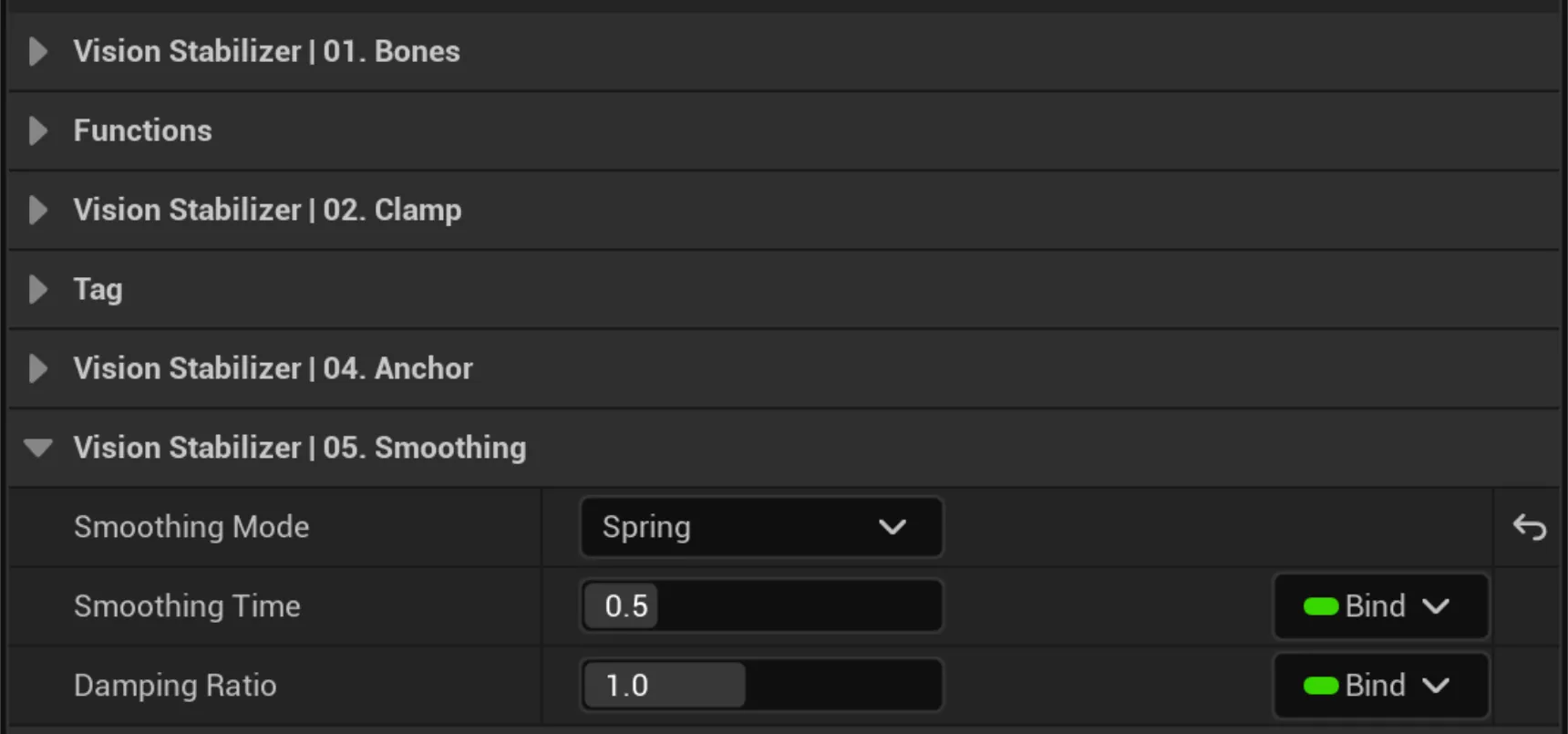
| Smoothing Mode | None | No | None: pure leash. Recenter: exponential ease toward the center, plus the leash. Spring: spring-damper toward the center; the clamp radius becomes a safety limit. | None for classic head bob. Recenter to soften edge drags. Spring for intense animation or the calmest camera. |
| Recenter Speed (Recenter) | 5 /s | Optional | How fast the camera point eases back toward the center. Higher = follows the head closer. | 2-5 soft, 10+ tight. |
| Smoothing Time (Spring) | 0.5 s | Optional | Time for the spring to settle the camera onto the center. 0 = no smoothing (snaps to the center). | 0.1-0.3 s responsive, 0.5-1 s calm, 1-2 s follows only the long-term average of the head. |
| Damping Ratio (Spring) | 1 | Optional | 1 = settles without overshoot. Below 1 = overshoot (floaty). Above 1 = sluggish. Minimum 0.05. | 1 for most cases, 0.6-0.9 for a slight organic overshoot. |
With Spring, make the clamp radius large enough that normal motion never reaches it; ShowDebug Animation shows Clamped: Yes when it does. Long Smoothing Times never make the camera lag behind world movement, only behind head motion relative to the body.
06. Rotation
Section titled “06. Rotation”| Setting | Default | Pin | What it does | Use case |
|---|---|---|---|---|
| Rotation Follow | 0 | Optional | 0 = keep the rotation captured on the first frame. 1 = follow the head’s rotation fully. | Only visible when the camera takes rotation from the bone (Use Pawn Control Rotation off): 0.2-0.5 adds some head tilt for a physical feel. |
07. Debug
Section titled “07. Debug”| Setting | Default | Pin | What it does |
|---|---|---|---|
| Enable Debug Draw | Off | No | Draws the clamp volume and points in the viewport and adds live values to the ShowDebug Animation overlay. See Debugging. Not available in Shipping or Test builds. |
Compile-time validation
Section titled “Compile-time validation”| Message | When |
|---|---|
| Error | No skeleton; Head Bone or POV Bone not set or not on the skeleton; Head Bone and POV Bone are the same; Anchor Bone set but not on the skeleton. |
| Warning | Ground-Speed Curve mode with no Radius Curve; Head Influence below 1 with no Anchor Bone and zero Anchor Offset. |
Switching Clamp Mode or Use Owner Velocity disconnects any pin that becomes unused (Clamp Radius or Ground Speed), so hidden links can’t come back unexpectedly.