
Quick Start
Esta página aún no está disponible en tu idioma.
Five minutes from install to a turning character. Mannequin defaults need no extra settings.
1.1 Enable the plugin
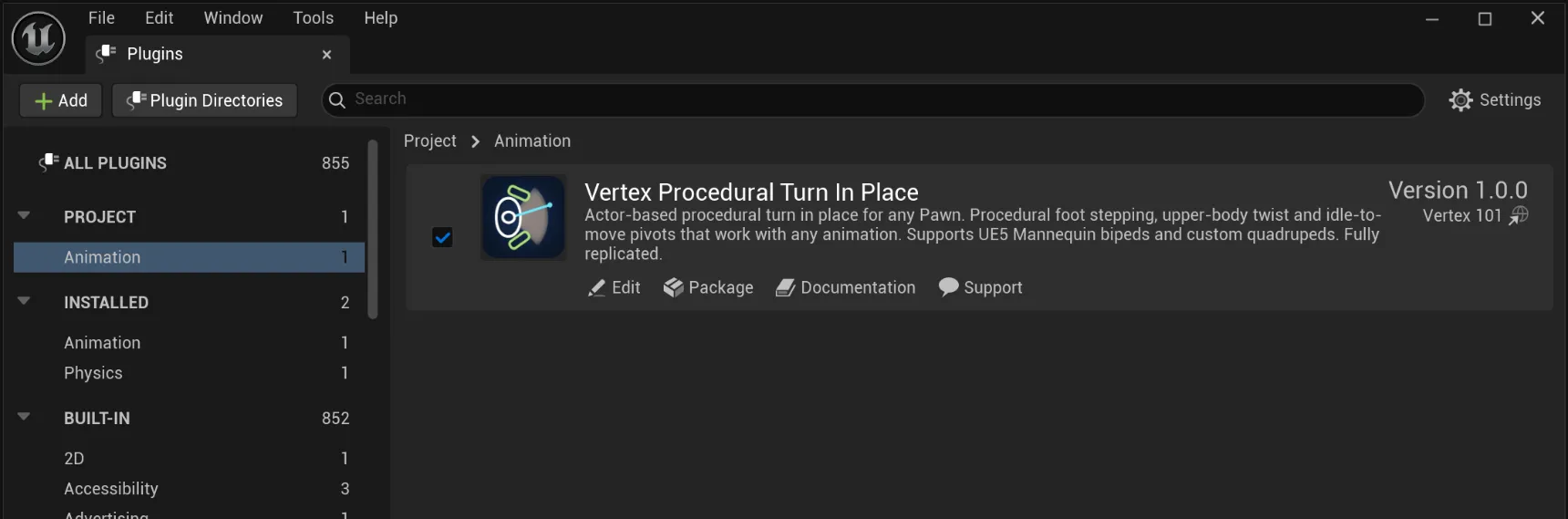
Section titled “1.1 Enable the plugin”- Edit > Plugins, search “Vertex”, enable Vertex Procedural Turn In Place.
- Restart the editor.
1.2 Add the component
Section titled “1.2 Add the component”- Open your Character (or any Pawn) Blueprint.
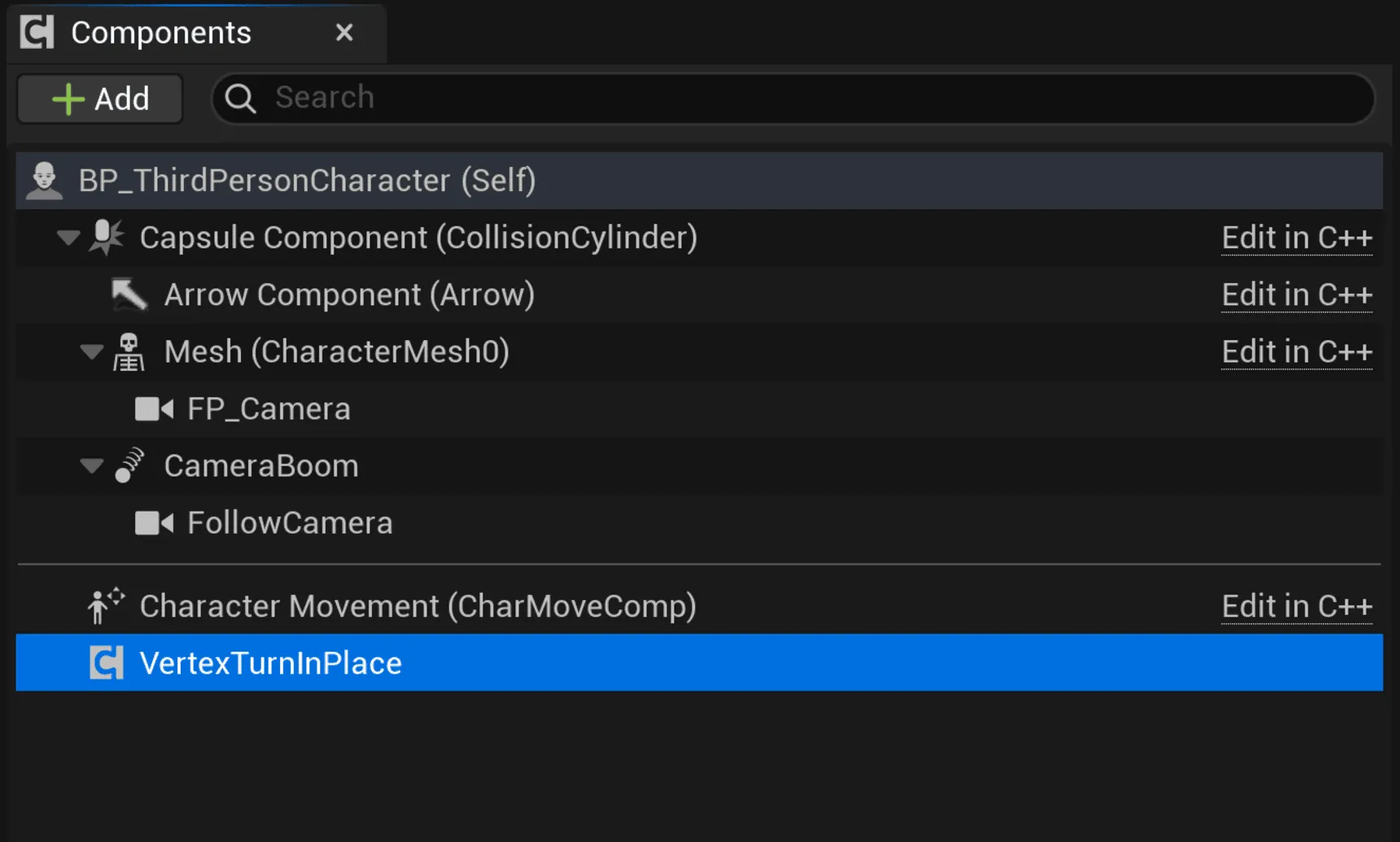
- Components > Add and pick Vertex Turn In Place.
- Leave the defaults. Compile and save.
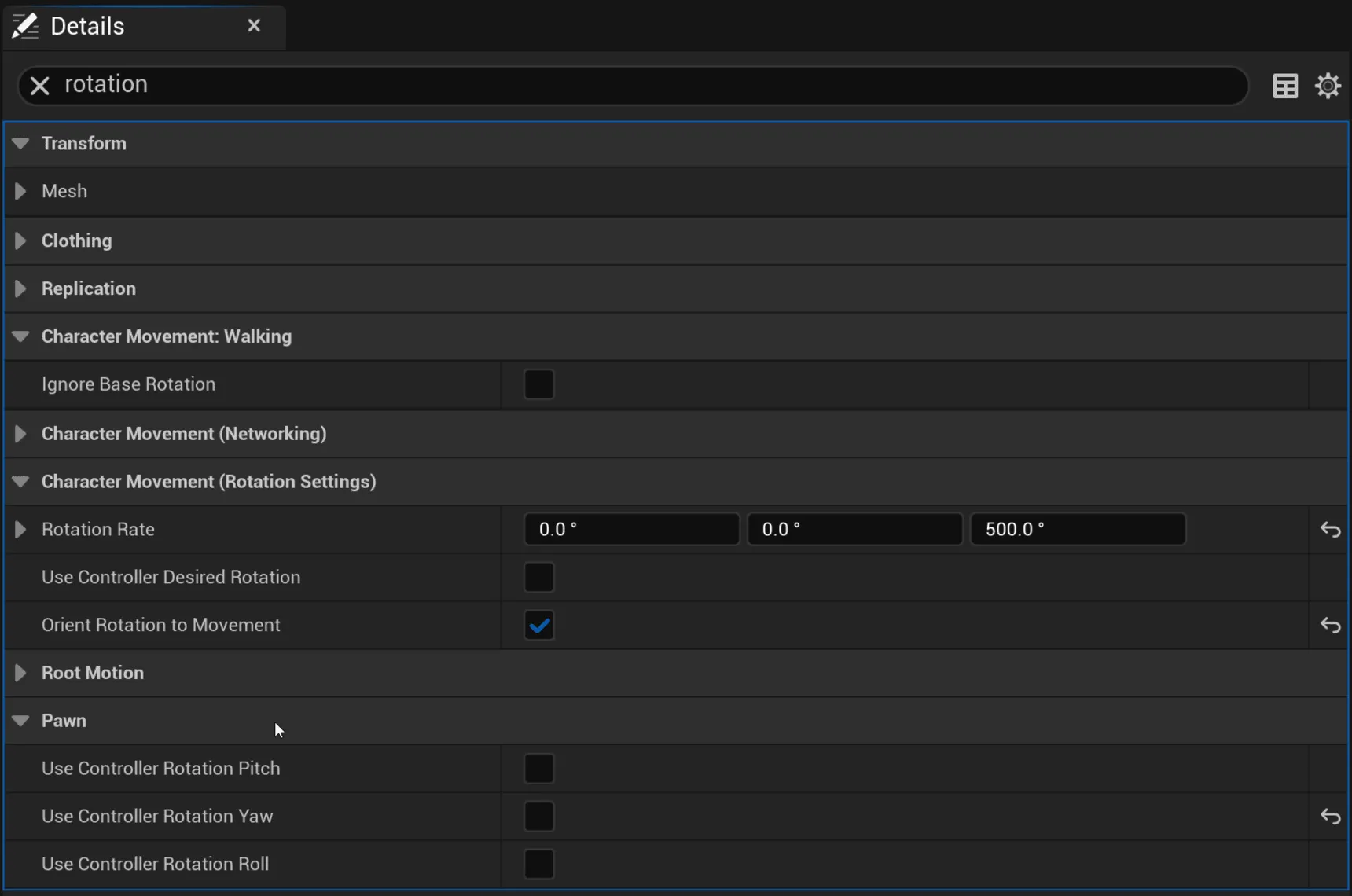
The component never changes your Character Movement rotation flags. While the pawn stands still it owns the actor’s yaw; while moving, your own locomotion setup (Orient Rotation to Movement, Use Controller Desired Rotation, …) is in control as before.
1.3 Add the AnimGraph node
Section titled “1.3 Add the AnimGraph node”- Open your Animation Blueprint, then the AnimGraph.
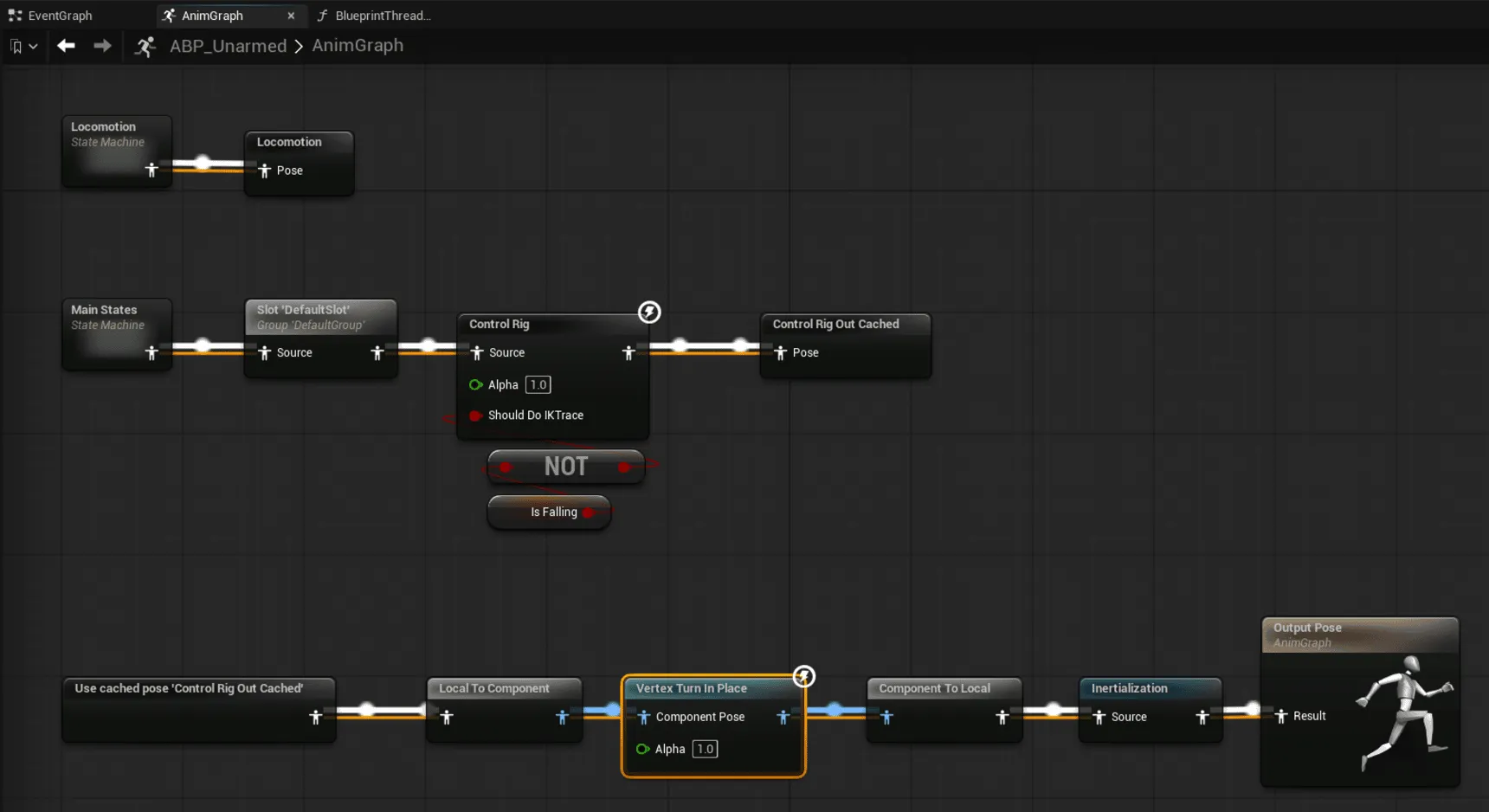
- Right-click, search Vertex Turn In Place, add the node.
- Connect it last: after your locomotion and after foot IK / Control Rig, right before Output Pose. The node keeps the foot height from the incoming pose, so ground IK stays intact; placed before foot IK, the foot IK overrides the planted feet and they slide:
[Locomotion State Machine] -> [Control Rig / Foot IK] -> [Vertex Turn In Place] -> [Output Pose]- Compile. The node finds the component on the owning actor by itself. No Animation Blueprint variables are needed.
1.4 Skeleton setup
Section titled “1.4 Skeleton setup”| Skeleton | What to do |
|---|---|
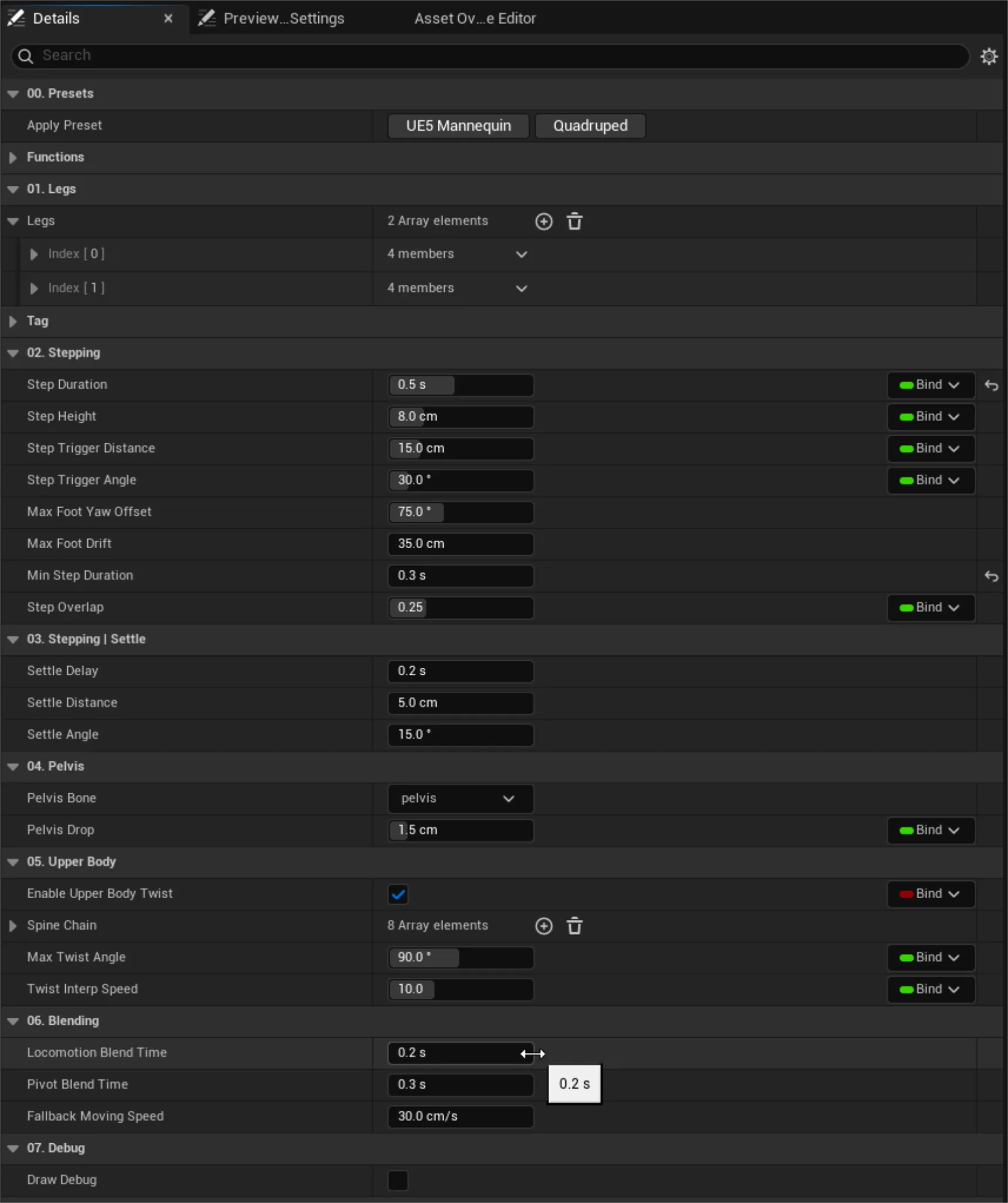
| UE5 Mannequin | Nothing. Legs, pelvis and spine chain are pre-filled. |
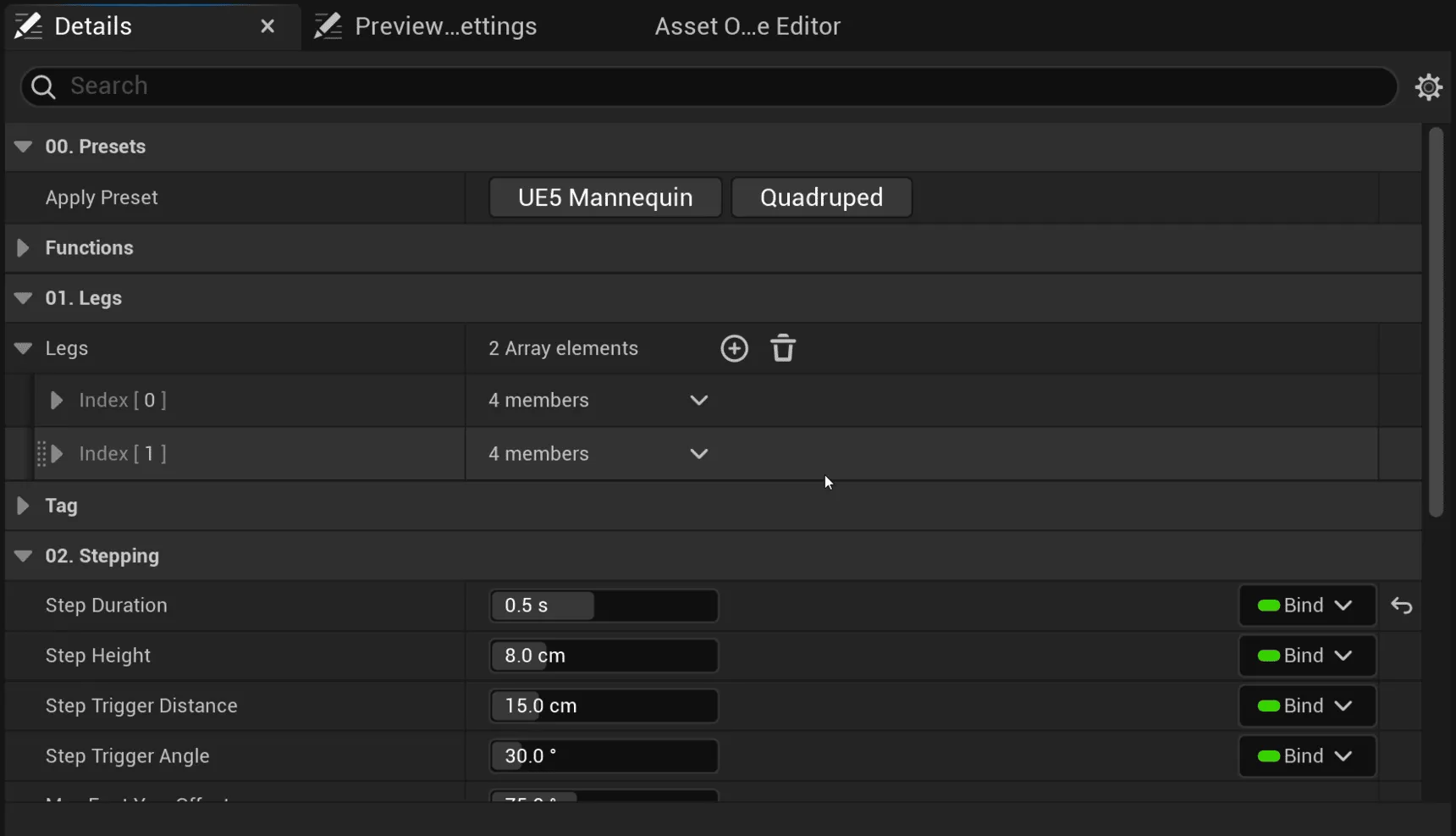
| Custom biped | Fill 01. Legs (thigh, calf, foot per leg; left = group 0, right = group 1), Pelvis Bone, and Spine Chain. |
| Quadruped | Fill the leg bones, press Quadruped in 00. Presets, then fill any bones the preset cleared. See Use Cases. |
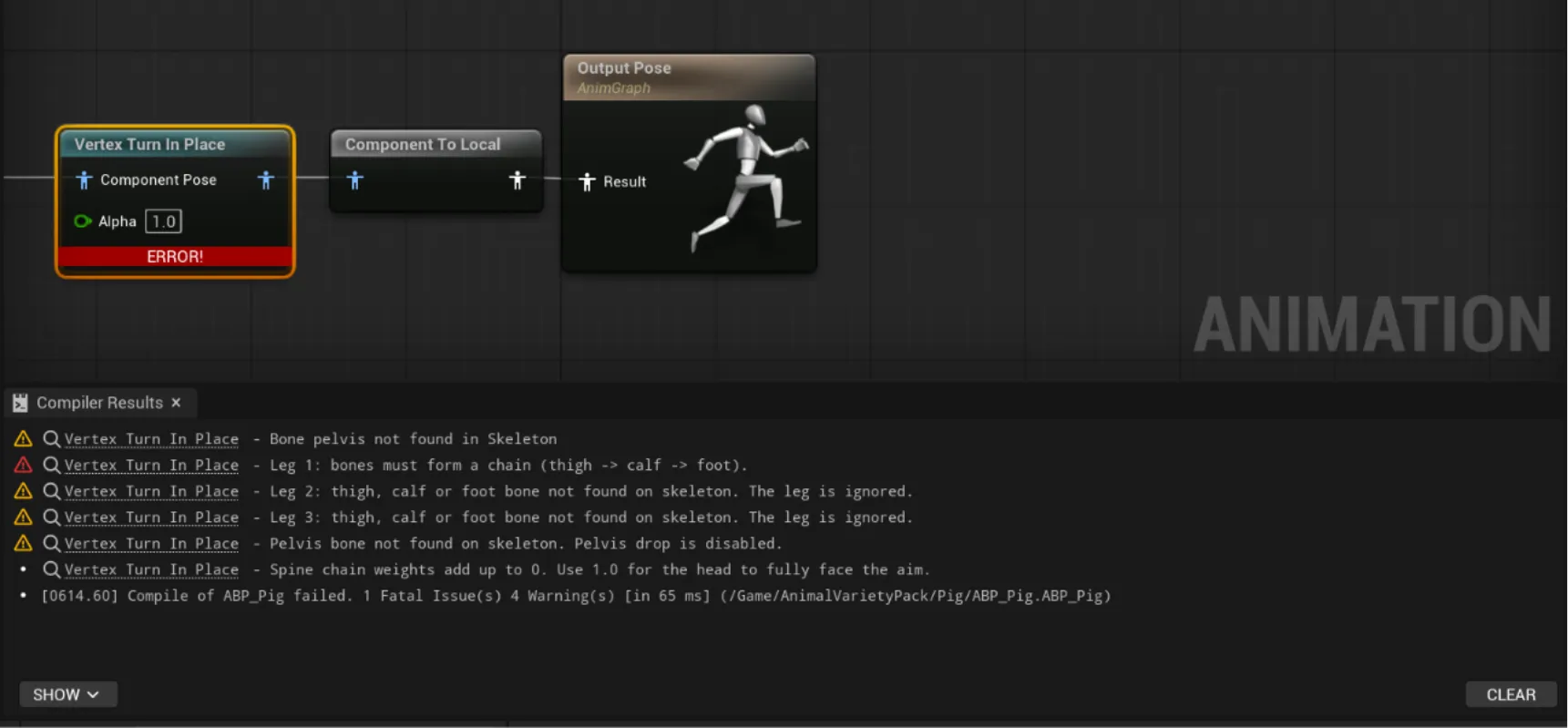
The Blueprint compile step validates the node: missing bones, broken thigh-calf-foot chains and spine bones that carry a leg are reported as warnings.
1.5 Test it
Section titled “1.5 Test it”- Play in editor, stand still, move the mouse to turn the camera.
- Past Turn Start Angle (75 degrees by default) the actor turns and the feet step.
- Press
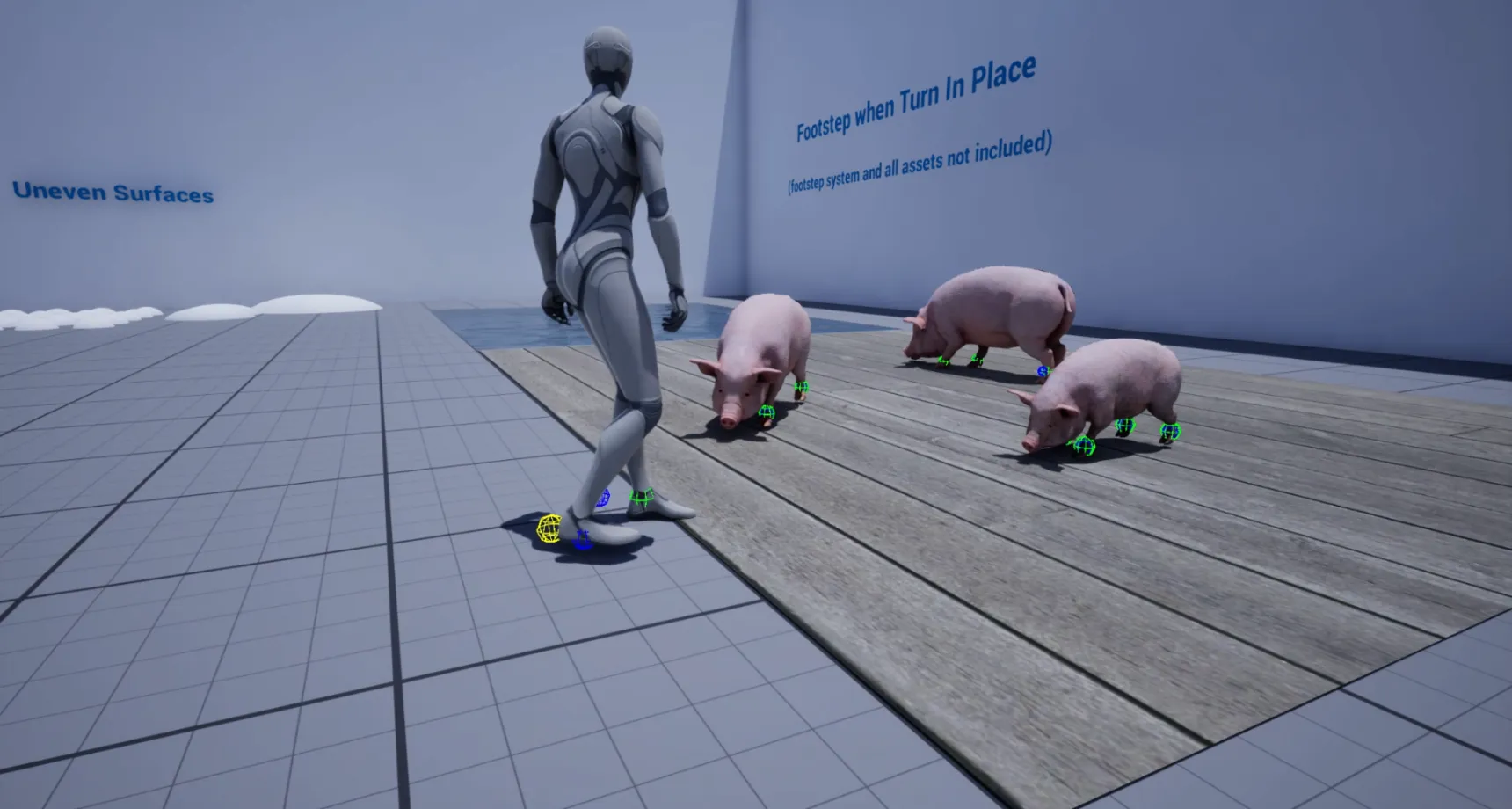
vertex.TurnInPlace.Debug 1in the console to draw planted (green), stepping (yellow) and animated (blue) feet.