Quick Start
Esta página aún no está disponible en tu idioma.
Five minutes from install to a stabilized first-person camera. UE5 Mannequin skeletons need no bone changes.
1.1 Enable the plugin
Section titled “1.1 Enable the plugin”- Install Vision Stabilizer from Fab for Unreal Engine 5.8.
- Edit > Plugins, search “Vision Stabilizer”, enable it.
- Restart the editor.
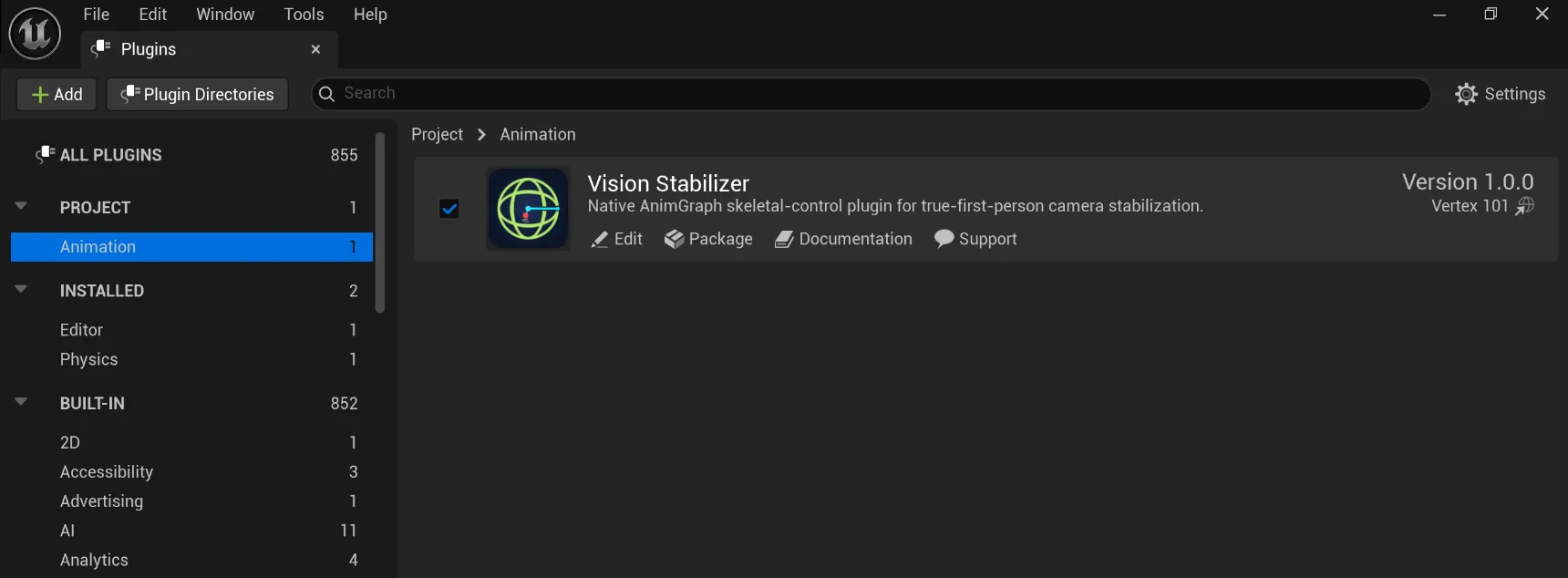
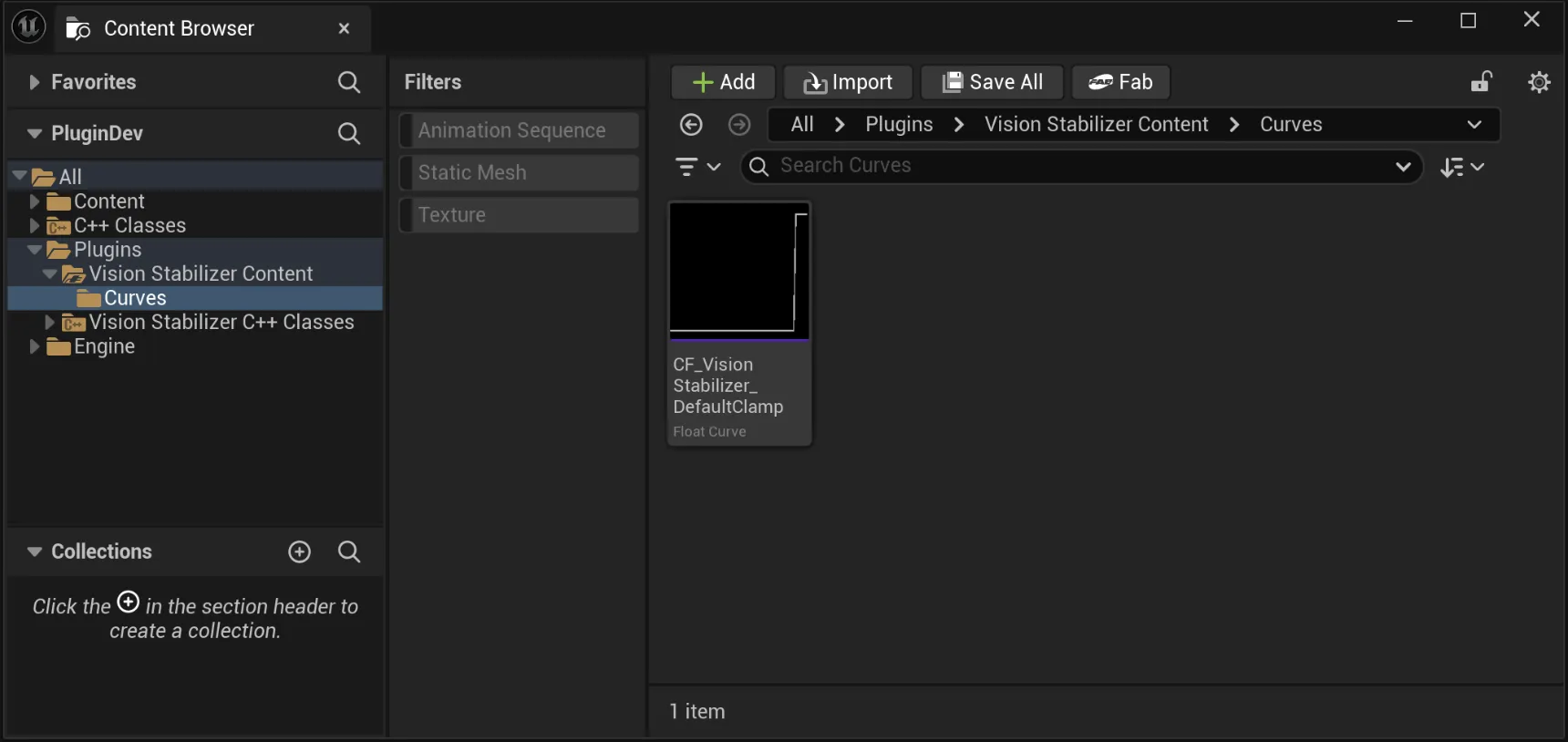
(Optional) To see the bundled default curve CF_VisionStabilizer_DefaultClamp, enable Show Plugin Content in the Content Browser settings. It’s in All > Plugins > Vision Stabilizer Content > Curves (/VisionStabilizer/Curves/).
1.2 Create the POV virtual bone
Section titled “1.2 Create the POV virtual bone”The node never moves the real head. It writes the stabilized result to a virtual bone, and the camera follows that bone.
- Open your character’s Skeleton asset.
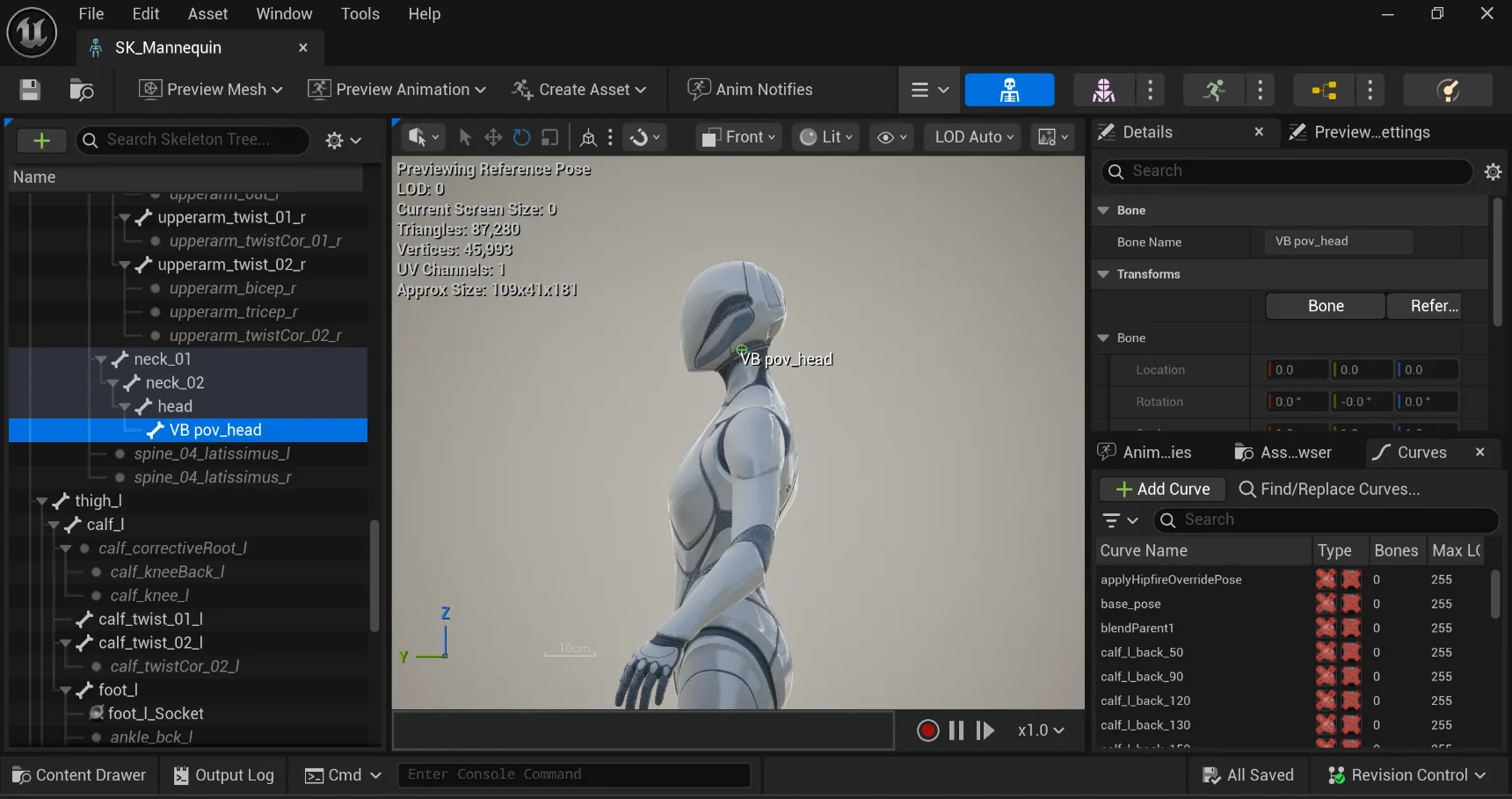
- Right-click the head bone (usually
head) and choose Add Virtual Bone, then pick the head bone again as the target. - Rename it to
pov_head. Unreal adds theVBprefix, so the full name isVB pov_head, the node’s default. - Save the Skeleton.
1.3 Attach the camera
Section titled “1.3 Attach the camera”- Open your Character Blueprint.
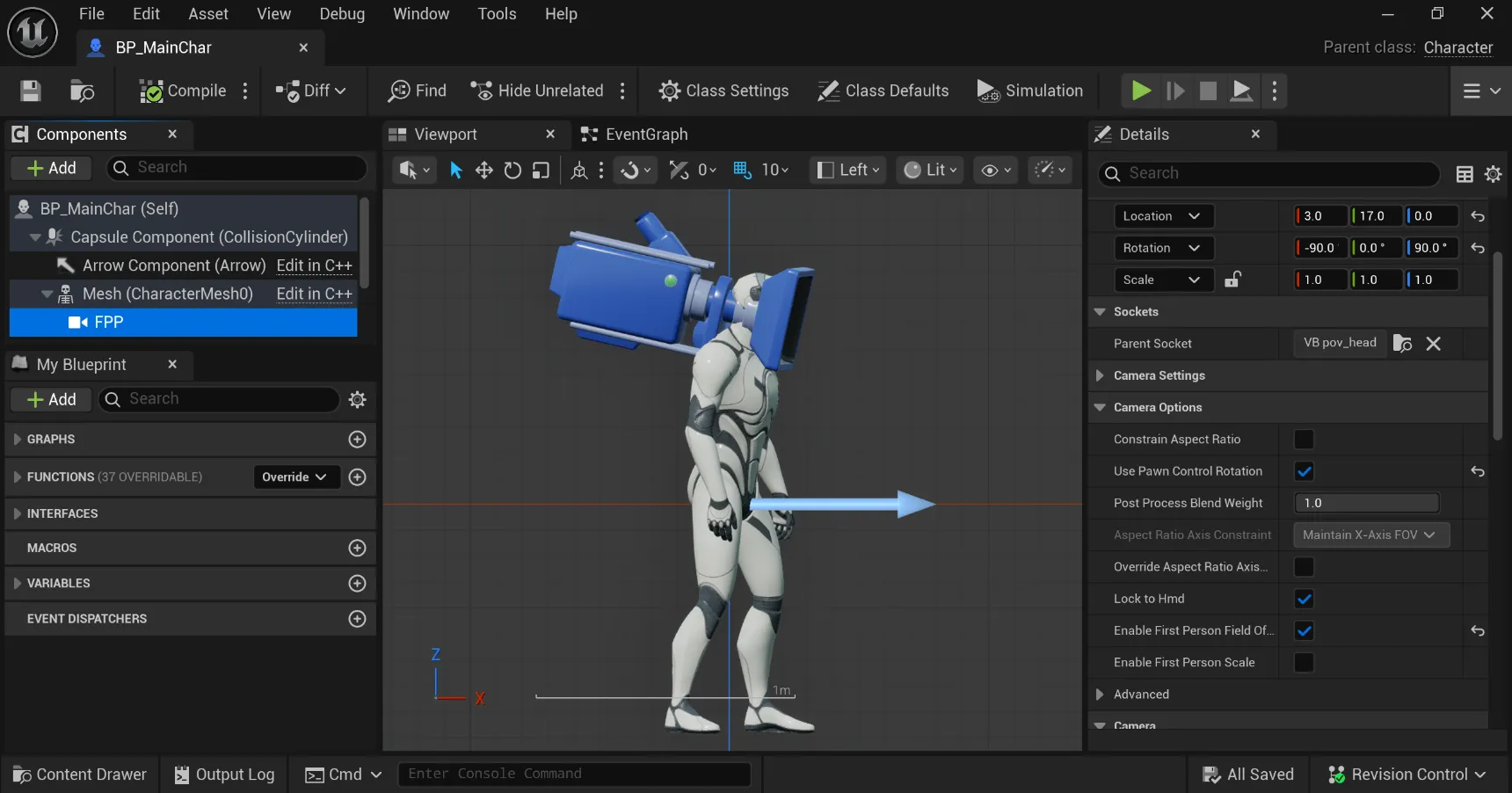
- Attach the first-person Camera to the character mesh with Parent Socket =
VB pov_head(not the head bone). - Enable Use Pawn Control Rotation on the camera so it rotates with look input (the usual setup).
- Offset the camera slightly so it doesn’t clip into the head mesh.
1.4 Add the AnimGraph node
Section titled “1.4 Add the AnimGraph node”- Open the character’s Animation Blueprint, then the AnimGraph.
- Right-click, search Vision Stabilizer (category Skeletal Controls), add the node.
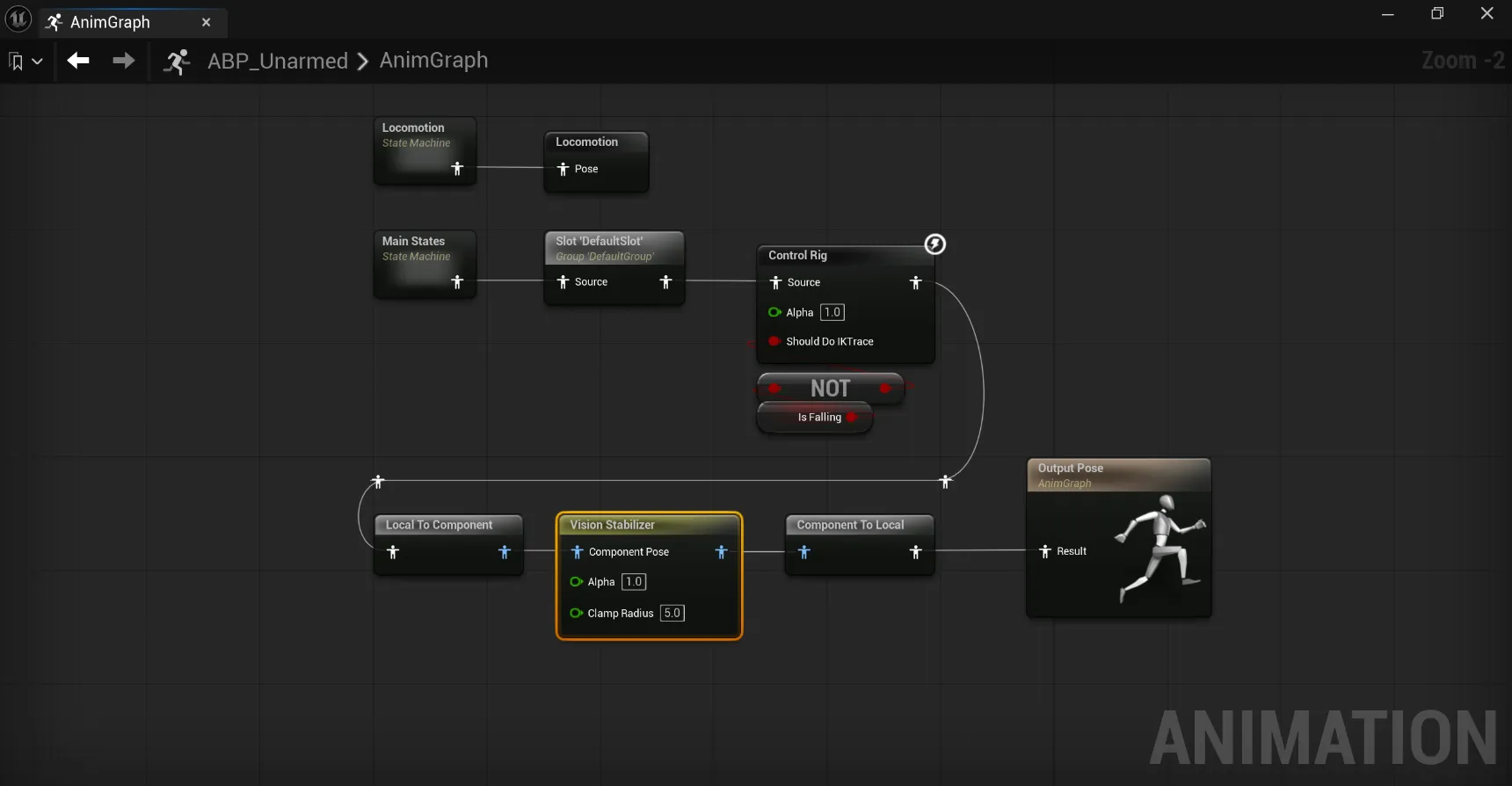
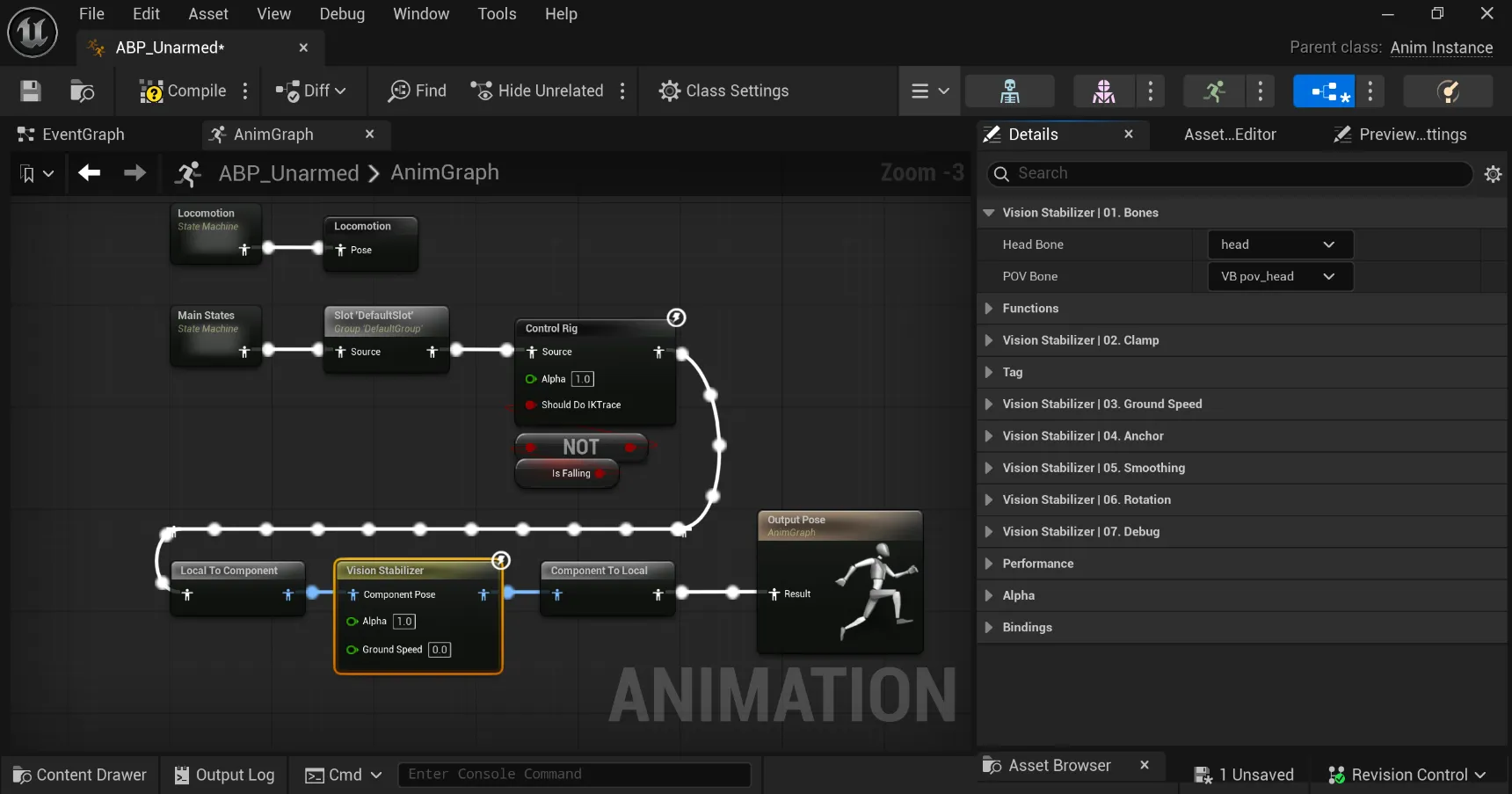
- Connect it in the final pose chain, normally right before Output Pose. Unreal adds the Local To Component and Component To Local conversion nodes automatically; that’s expected:
[Locomotion / other nodes] -> [Local To Component] -> [Vision Stabilizer] -> [Component To Local] -> [Output Pose]- In 01. Bones, check Head Bone (
head) and POV Bone (VB pov_head). - Compile. Missing or wrong bones are reported as errors.
1.5 Test it
Section titled “1.5 Test it”- Play in editor and walk around. With default settings the camera ignores head motion smaller than 5 cm.
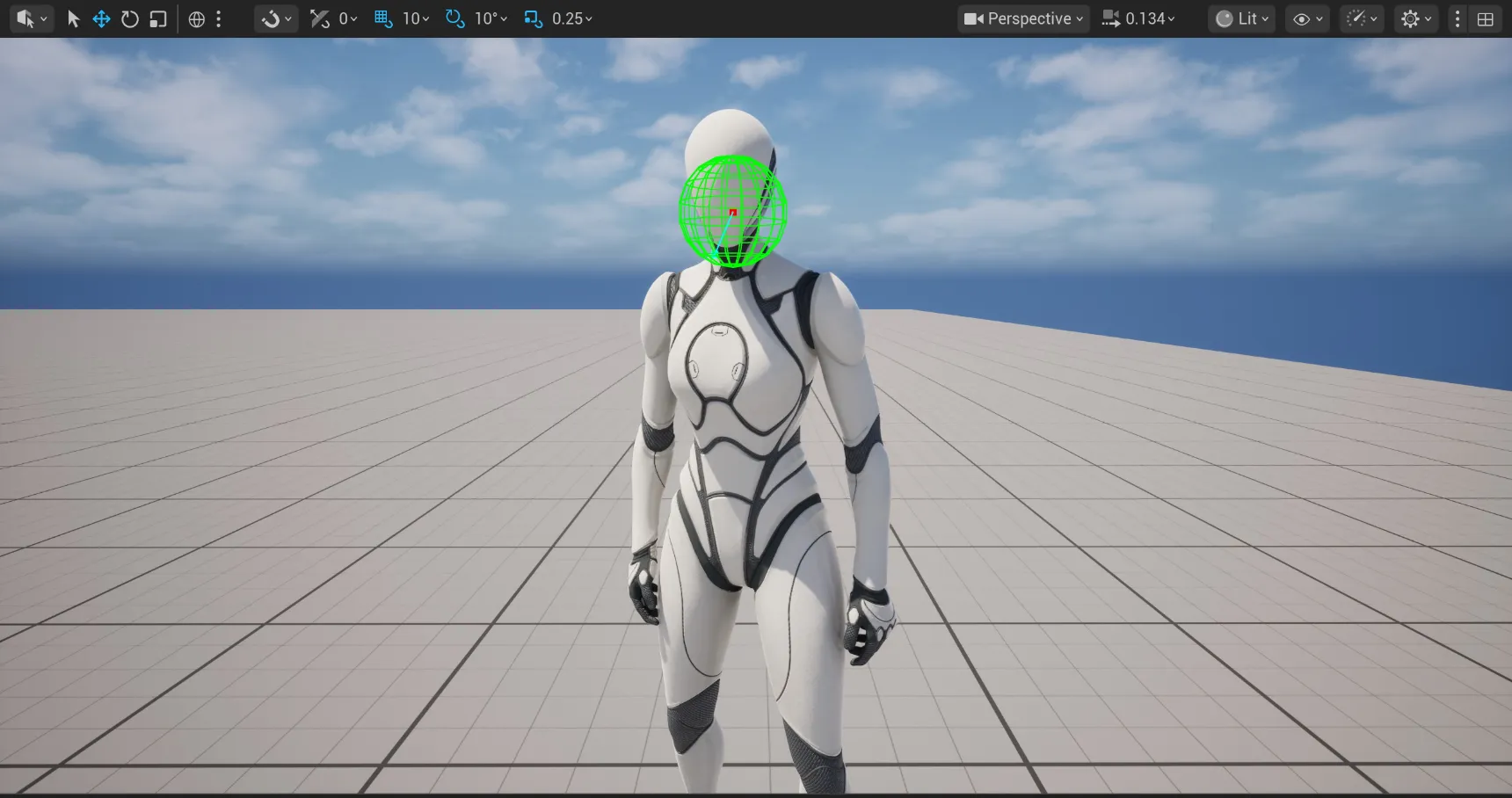
- In 07. Debug, turn on Enable Debug Draw to see the clamp volume and the camera point. See Debugging.
- Tune using Node Settings, or start from a ready-made setup in Use Cases.