Debugging and Troubleshooting
此内容尚不支持你的语言。
Debug draw
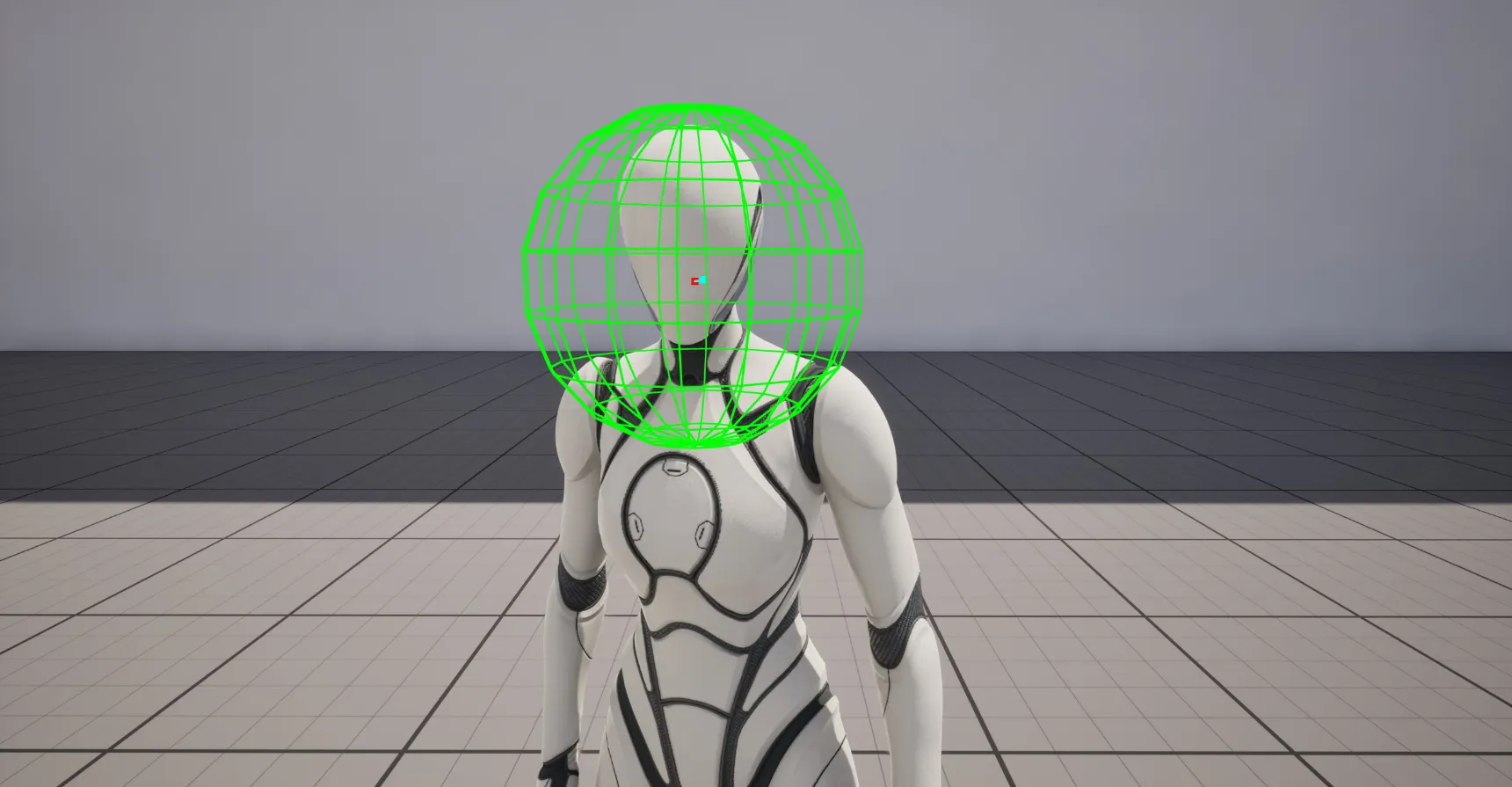
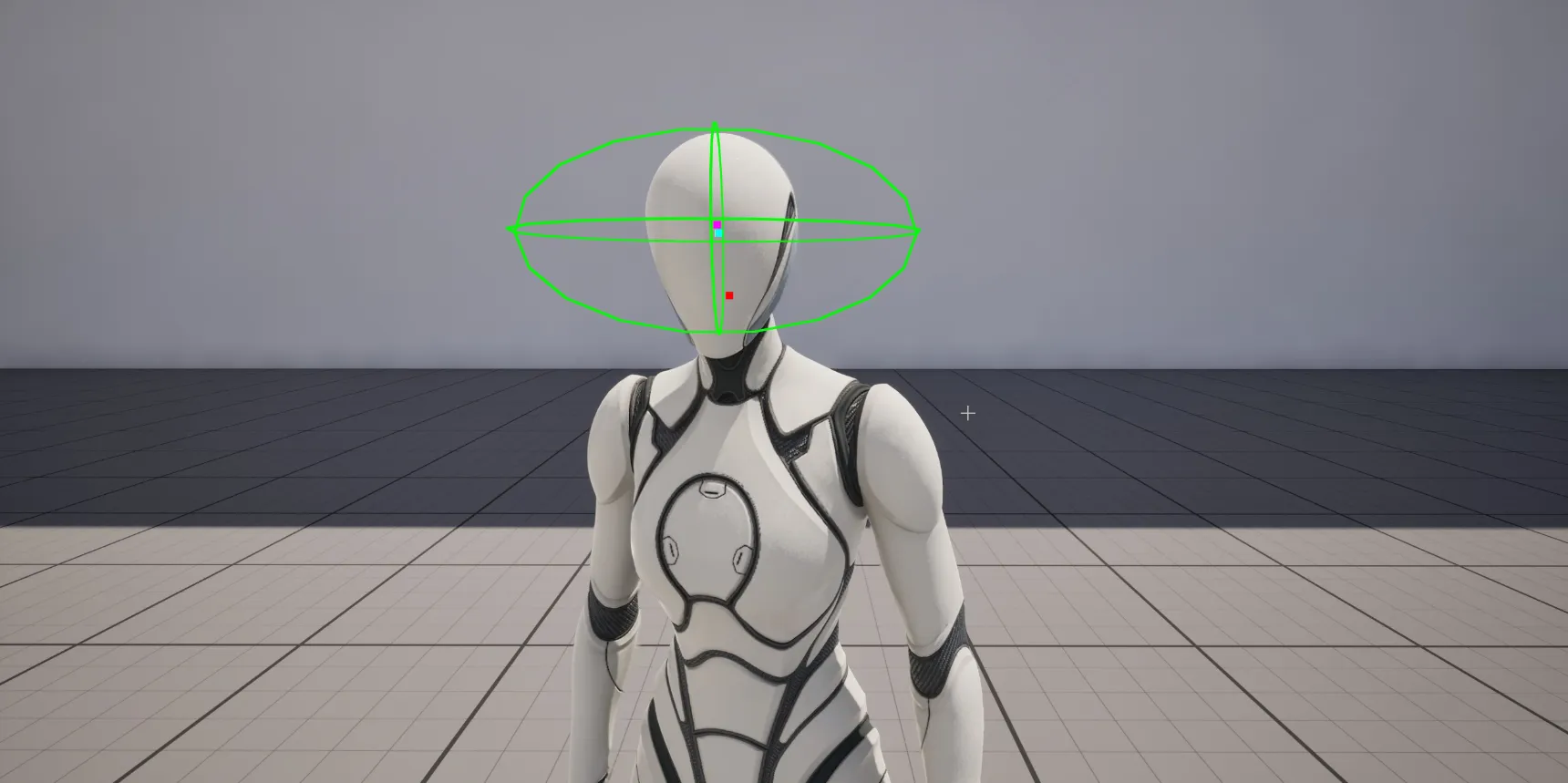
Section titled “Debug draw”Turn on Enable Debug Draw (07. Debug) and play in the editor. The shapes draw on top of everything.
| Color | Meaning |
|---|---|
| Green sphere / ellipsoid | Clamp volume (current radius and Vertical Scale) around the center |
| Yellow point | Clamp center (head/anchor blend + Height Offset) |
| Magenta point | Anchor (only when Head Influence is below 1) |
| Red point | Where the animation puts the POV bone this frame (unstabilized) |
| Orange point + line | Camera point before this frame’s update |
| Cyan point + line | Final stabilized position written to the POV bone |
Points often overlap: cyan draws over orange, and yellow and red often coincide. That’s normal.
Live values (ShowDebug Animation)
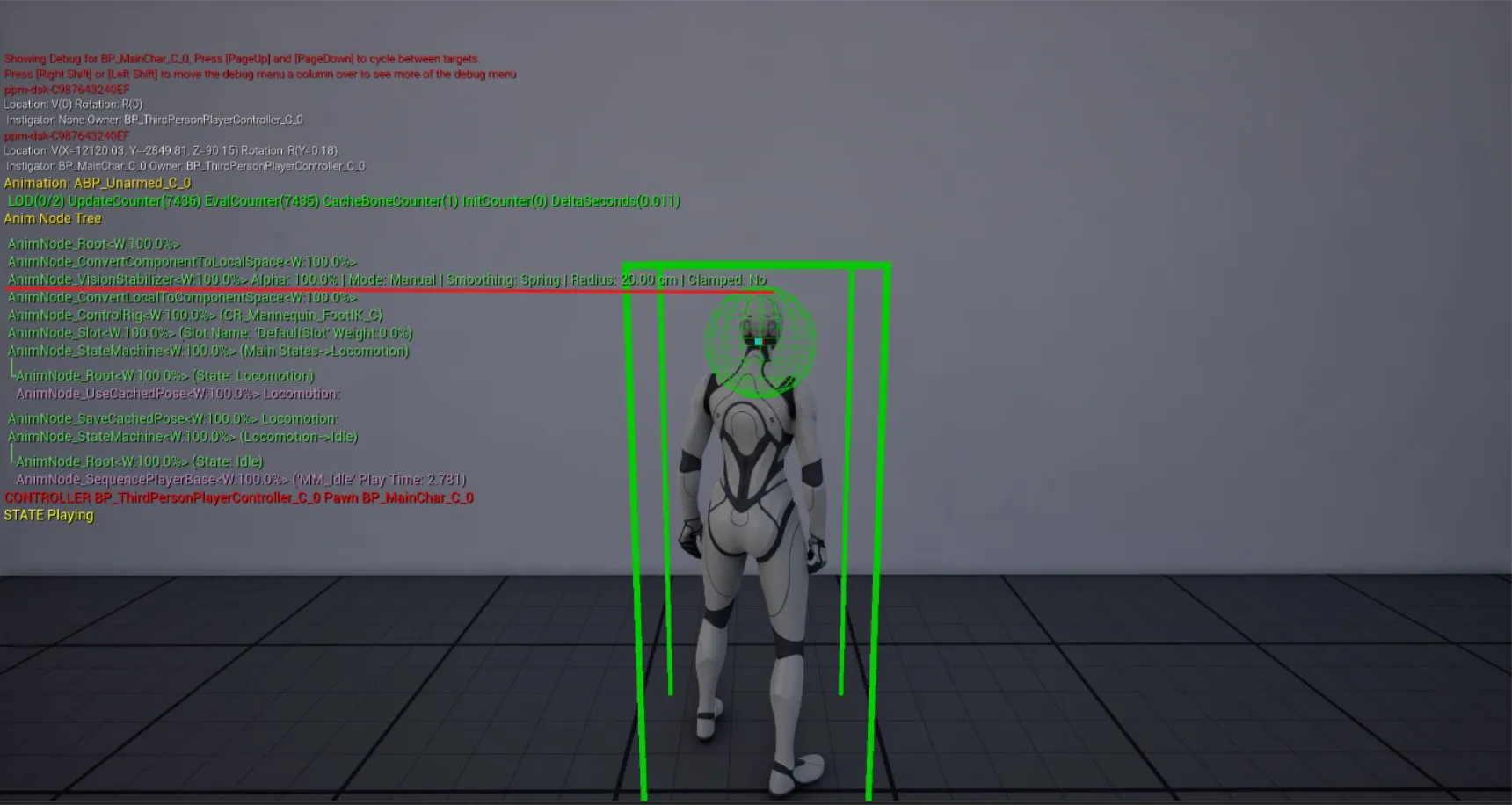
Section titled “Live values (ShowDebug Animation)”With Enable Debug Draw on, play in the editor, open the console (~) and enter:
ShowDebug AnimationThe on-screen overlay lists the active animation nodes under Anim Node Tree. The node’s line starts with AnimNode_VisionStabilizer and shows:
- Mode (clamp mode) and Smoothing (smoothing mode)
- Radius: the current clamp radius
- Clamped: whether the clamp engaged this frame
- Ground Speed (speed modes): input -> speed used
The overlay shows the character you are viewing through (your player in PIE). To hide the other sections and keep the node tree readable, enter ShowDebugToggleSubCategory SyncGroups, then the same for Montages, Curves and Notifies. Enter ShowDebug Animation again to close the overlay.
Tuning workflow
Section titled “Tuning workflow”- Start from a setup in Use Cases.
- Play your hardest animations: sprint stops, direction reversals, transitions.
- With Spring, enlarge the clamp radius until
ClampedstaysNoduring normal play. - Adjust Smoothing Time for feel: shorter = more responsive, longer = calmer.
- Lower Head Influence only if smoothing alone isn’t steady enough.
Troubleshooting
Section titled “Troubleshooting”| Symptom | Cause / fix |
|---|---|
| Animation Blueprint won’t compile | Head Bone and POV Bone must be set, exist on the skeleton, and differ. Anchor Bone, if set, must exist. |
| Warning: Ground-Speed Curve with no curve | Assign a Radius Curve, or use Ground-Speed Range or Manual. Until then the node uses Clamp Radius. |
| Warning: Head Influence below 1 with no anchor | Set an Anchor Offset (and optionally an Anchor Bone), or set Head Influence back to 1. |
| Camera still shakes with the head | The camera must be attached to the POV virtual bone, not the head bone, and the node must be in the active pose chain. Check Alpha is 1. |
| Camera snaps or jerks on big movements | The head is passing the radius. Increase the radius, or use Smoothing Mode Recenter or Spring. |
| Camera feels floaty or overshoots | Set Damping Ratio to 1, or shorten Smoothing Time. |
| Camera feels late on head motion | Shorten Smoothing Time, raise Recenter Speed, or raise Head Influence. |
| Camera ends up inside the body | Raise Head Influence, shorten Smoothing Time, reduce the radius, or move the anchor / Height Offset. |
| Speed modes feel wrong at high speed | Ground Speed must be horizontal scalar speed in cm/s, and Max Speed must match your character’s top speed. |
| Camera height is off | Adjust Height Offset. |
| Rotation Follow does nothing | The camera uses Pawn Control Rotation, so it ignores the bone’s rotation. |
| A pin link disappeared after changing mode | Intentional. Switching Clamp Mode or Use Owner Velocity disconnects the input that’s no longer used. |
| No debug shapes | Turn on Enable Debug Draw, play in the editor, and make sure the node is in the active pose path. Not available in Shipping or Test builds. |
Technical notes
Section titled “Technical notes”- Component space. All calculations are relative to the skeletal mesh component, so world movement never causes lag.
- The real head is never modified. Only the POV virtual bone is written.
- Thread-safe. Evaluation runs on animation worker threads without touching the world. With Use Owner Velocity on, the owner’s velocity is read once per frame on the game thread before the animation update.
- Frame-rate independent. Smoothing uses the animation delta time.
- State reset. The stored camera point resets when the Animation Blueprint reinitializes; on the first frame it starts at the animated POV bone position.
- Lower LODs. If a lower mesh LOD removes the Anchor Bone, the anchor falls back to the head position.
Known limits
Section titled “Known limits”- Win64 and UE 5.8 only.
- Stabilizes position; rotation is either the first-frame rotation or a blend toward the head (Rotation Follow).
- Clamp Mode and Smoothing Mode are set in the Details panel, not at runtime.